Best-Selling Hosting
- Colocation Hosting
- Shared Hosting
- VPS Hosting
- Reseller Hosting
- Windows Hosting
- PHP Hosting
- Multiple Domain Hosting
- ASP Hosting
- Best Web Hosting Companies
- Dedicated Servers
- Java Hosting
- Managed Servers
- Coldfusion Hosting
- Linux Hosting
- Database Hosting
- > All Hosting Services
Top Rated Providers
Editors Pick
Upgrading MySQL 4.0 to 4.1 in Cpanel
Published: Dec 08, 2005
-
Rating
5/5
Rating
5/5MySQL 4.1 has been available for quite some time but many server admins still haven’t gotten around to getting their MySQL 4.0 upgraded to 4.1 We offer a quick and easy method to get this accomplished through your Cpanel/WHM server.

Upgrading MySQL 4.0 to 4.1 in Cpanel
Overview:
MySQL 4.1 has been available for quite some time but many server admins still haven’t gotten around to getting their MySQL 4.0 upgraded to 4.1 We offer a quick and easy method to get this accomplished through your Cpanel/WHM server.
You’ll need about 30-45 minutes to complete this, maybe a bit longer. We have to update Cpanel, update MySQL and rebuild Apache/PHP.
Check what version of MySQL you currently have installed. It’s probably 4.0x but you can check through shell by doing the following:
# mysql -V
Upgrading MySQL 4.0 to 4.1
There are some excellent documentation and notes you should read before proceeding with this upgrade tutorial. We aren’t going to cover everything so I suggest you take a minute to read this, upgrading MySQL is a major upgrade and is irreversible!
http://dev.mysql.com/doc/refman/4.1/en/upgrading-from-4-0.html
Installing MySQL 4.1 - the upgrade begins
The first thing we need to do is make sure Cpanel is updated to the latest version. You can do the update through WHM Upgrade to Latest Version or through shell
# /scripts/upcp
Once the update completes you want to go into WHM.
Server Configuration, Tweak Settings section
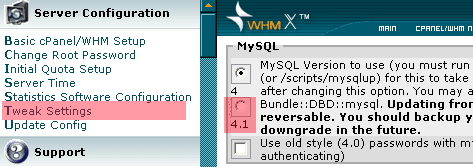
Select MySQL 4.1 option, do no check use old authentication.
Scroll to the bottom and hit Save.
You’ll then see the next screen such as this:
Your changes have been saved
If you made changes to the mysql version, please Click Here after waiting 30 seconds to have them take effect.
Restarting....Done
So we’ll wait 30 seconds and then click the link =)
Cpanel will then go through a bit process of grabbing the latest MySQL version 4.1.13 at the time of this tutorial and install it automatically through RPMs.
Once this page completes you need to do a few more steps to complete the update.
You should see a Complete message that’s bolded when its done.
Updating PHP to support MySQL 4.1
Now you need to recompile Apache/PHP to support the changes as quick as possible because PHP will currently not work with MySQL. You might see something like this in console:
# php -v
php: error while loading shared libraries: libmysqlclient.so.12: cannot open shared object file: No such file or directory
This is normal and fine, lets proceed with the Apache update. See our detailed /scripts/easyapache tutorial here.
# /scripts/easyapache
Don’t change any of the default MySQL options here, select the other settings you want. Save the changes and let it rebuild. This usually takes 20 minutes or so to complete:
Now that Apache has finished recompiling we want to make sure it works properly! In shell again do the following command. It should produce your PHP version information without any errors:
# php –v
PHP 4.4.1 (cli) (built: Dec 8 2005 20:57:56)
Copyright (c) 1997-2004 The PHP Group
Zend Engine v1.3.0, Copyright (c) 1998-2004 Zend Technologies
You can also check the MySQL version with the following:
# mysql –V
mysql Ver 14.7 Distrib 4.1.13, for pc-linux-gnu (i686) using readline 4.3
Upgrade is complete! Give yourself a pat on the back for some hard work and take a deep breath because you got through this haha =)
MySQL 4.1 upgrade Problems?
Make sure you follow all the steps, especially rebuilding Apache/PHP if you don’t the libraries will be out of sync and no websites will be able to connect to databases.
Notes:
The 4.0 to 4.1 MySQL upgrade changes many aspects of databases. For example, when you’re trying to restore a 4.0 database to a 4.1 database it will not work. The opposite is also true. This is because it ads new fields, etc to tables that each version doesn’t support. So if you have many machines, upgrade them all or none because if you’re moving databases around you’re going to hit a brick wall.
Having trouble getting this tutorial to work? We can do this update for you on your server, simply contact us for a quote.
About the Author:
Steven Leggett is the editor of the server resource and hosting tutorial site, www.webhostgear.com and specializes in system administration and web development.
Related Articles
- Official Cpanel Newbie Guide
- Force (SSL) secure logins in WHM and Cpanel
- Modify Bandwidth Exceeded Page
- Default Index Page on New Accounts
- Securing Your /tmp Partition with Cpanel/WHM
- Disabling Password Reset Option
- Installing DrWEB server antivirus for Linux CPanel
- Properly Reject Invalid Email
- Setting up Reseller Private Nameservers
- Fix Cpanel Quotas
- Linux Apache ASP for Cpanel
Comments (2)
-
Tuxpack 05:48, July 1, 2006Hi,<br />
<br />
We have upgraded as per the docs.<br />
But while doing /scripts/easyapache, it is not asking us to select the skill set and just compiling it as it own.<br />
<br />
Not the pHP driven websites are not working.<br />
<br />
Error in apache logs are <br />
child pid 15041 exit signal Segmentation fault (11)<br />
<br />
Please help<br /> -
ahmed 01:22, October 18, 2008thank you <br />
you must update this post and adding mysql 5 too <br />
<br />
thank you <br />


Add Your Thoughts
WebHostGear.com is a hosting directory, not a web host.
Copyright © 1998-2024 WebHostGear.com