Best-Selling Hosting
- Colocation Hosting
- Shared Hosting
- VPS Hosting
- Reseller Hosting
- Windows Hosting
- PHP Hosting
- Multiple Domain Hosting
- ASP Hosting
- Best Web Hosting Companies
- Dedicated Servers
- Java Hosting
- Managed Servers
- Coldfusion Hosting
- Linux Hosting
- Database Hosting
- > All Hosting Services
Top Rated Providers
Editors Pick
Alertra Monitoring Service Reviewed
Published: Oct 28, 2003
-
Rating
1/5
Rating
1/5Server uptime is imparative in the hosting industry so we received the well known Alertra Monitoring service - see how they stacked up.
Company: Alertra
Product: Alertra Website Monitoring Service
Rating: 
Cost: $2.99 per month and up
Alertra website monitoring notifies you anytime your site goes down. Multiple monitoring stations around the world take turns conducting rigorous protocol-based tests on your Web server or other network service. If a station reports a failure three times, you will be notified by telephone, SMS, ICQ, MSN, AOL or e-mail.
I really enjoyed the fact that I could receive notification on my cell phone that my server was down which is a great feature for those who aren't always sitting at their desk.
Your Web server is checked as often as you prefer, from once per minute to once per hour. HTTP/HTTPS service checks your server and loads the page to verify the content. The more often you have a service checked the more expensive it is.
HTTPb service performs a basic protocol check with your HTTP server to make sure it's running. With either service, our global reporting stations take turns checking your site. 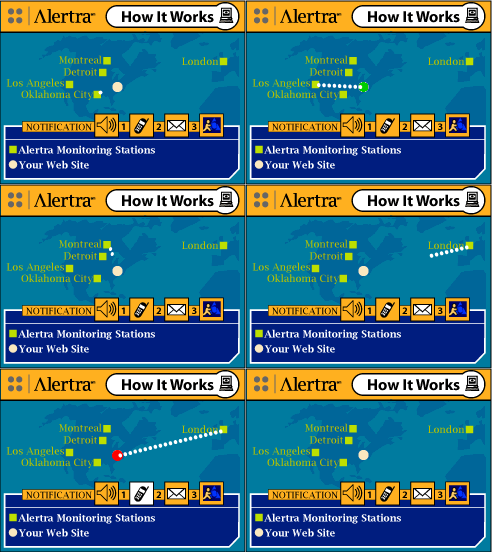
If a station reports a failure, the next station will check it again in 30 seconds. After three consecutive failures from different stations, the site will be marked down and contacts will be notified according to the schedule you establish. The contacts you specify are notified again when the site comes back up.
You can set up as many contacts to be notified as you like for each monitored device. You can have one contact for daytime, one for nighttime and another for weekends or any combination you can think of. For each monitored device, you can specify your own subject to be used in alerts sent to you via e-mail.
Making sure your webpages or servers are available for the world to view is very important to any website owner. Knowing if your website is unreachable allows you to make the appropriate adjustments in a timely fashion, especially if you earn revenue from your webpages. Alertra is one of the most professional website monitoring services available and now it includes free weekly reports of your uptime status for all devices you monitor. 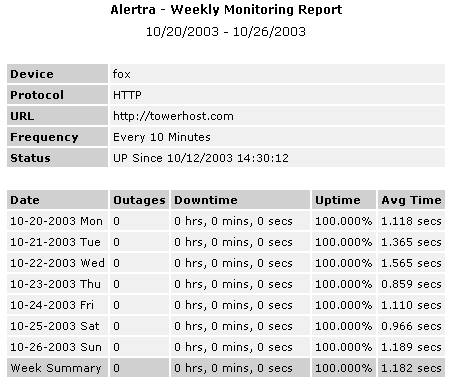
This service is a must have for any web hosting company, sign up with Alertra and receive a free 30 day trial.
Related Articles
Comments (3)
-
Brian Pauley 05:39, January 26, 2004I used to have alertra, but it proved to be only useful to give you a false sense of actual uptime. A good friend of mine had a server that was down for half a day and it never logged a thing. I had a downtime of about 10 minutes, but alertra recorded it as 2 hours. Not sure about everyone else, but I didn't like them and soon dropped them after a month.
-
Michael 05:38, February 28, 2005I don't find this review very useful, it doesn't say much that I didn't already know. A review that focuses more on the technical side of things would be much more useful to hosts. I.E. Performing tests of the service to determine accuracy, etc. I have used Alertra before, from what I could tell it seemed reliable, however, I didn't use it in the kind of production environment where you'd know if it was working or not.
-
Mark 06:31, December 9, 2008Alertra is a good service, but I personally have found uptimewarden.com to be more affordable and provides some stronger features for web hosting resellers and web designers like client reports, text matching etc.


Add Your Thoughts
WebHostGear.com is a hosting directory, not a web host.
Copyright © 1998-2024 WebHostGear.com